Automatic selection rules mark matching items for removal after a scan. They are useful when you repeatedly prefer newer files, higher-resolution photos, or originals whose names do not contain words such as “copy” or “backup.”
Open the rule editor
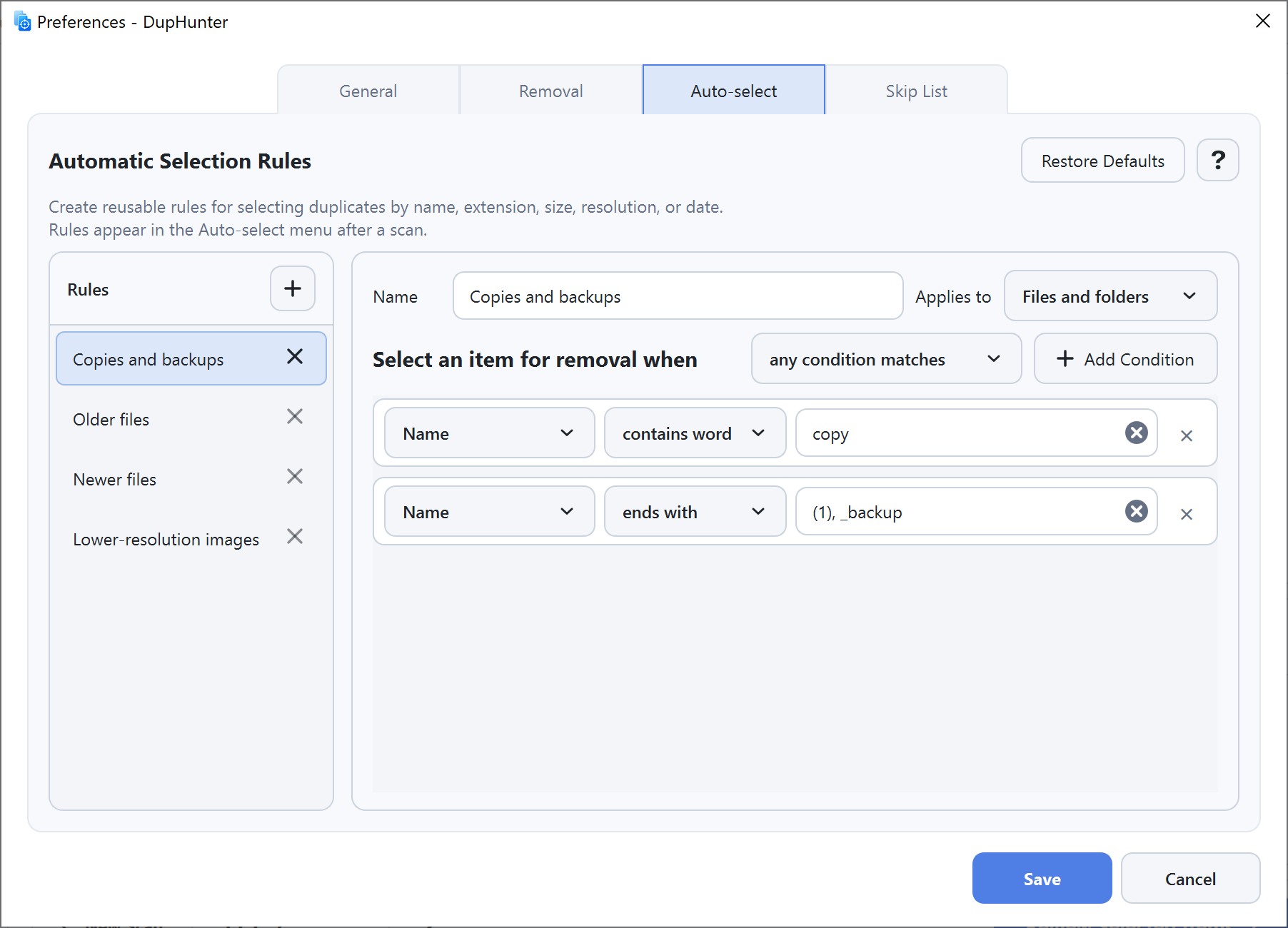
Open Preferences → Auto-select. Create a rule, give it a clear name, and choose where it applies:
- Files and folders
- Files
- Images
- Folders
Build conditions
A rule can match when any condition is true or only when all conditions are true. Available fields include:
Ends with, starts with, contains, contains a whole word, or equals.
Is or is not one of the specified extensions.
Select smaller or larger files, or lower/higher-resolution images within a group.
Select older or newer items by modification or creation date.
Use built-in rules
New installations include practical presets:
- Copies and backups matches common copy and backup naming patterns.
- Older files or Newer files compares modification dates inside a result group.
- Lower-resolution images marks images with fewer pixels than another image in the same group.
Apply a rule after scanning
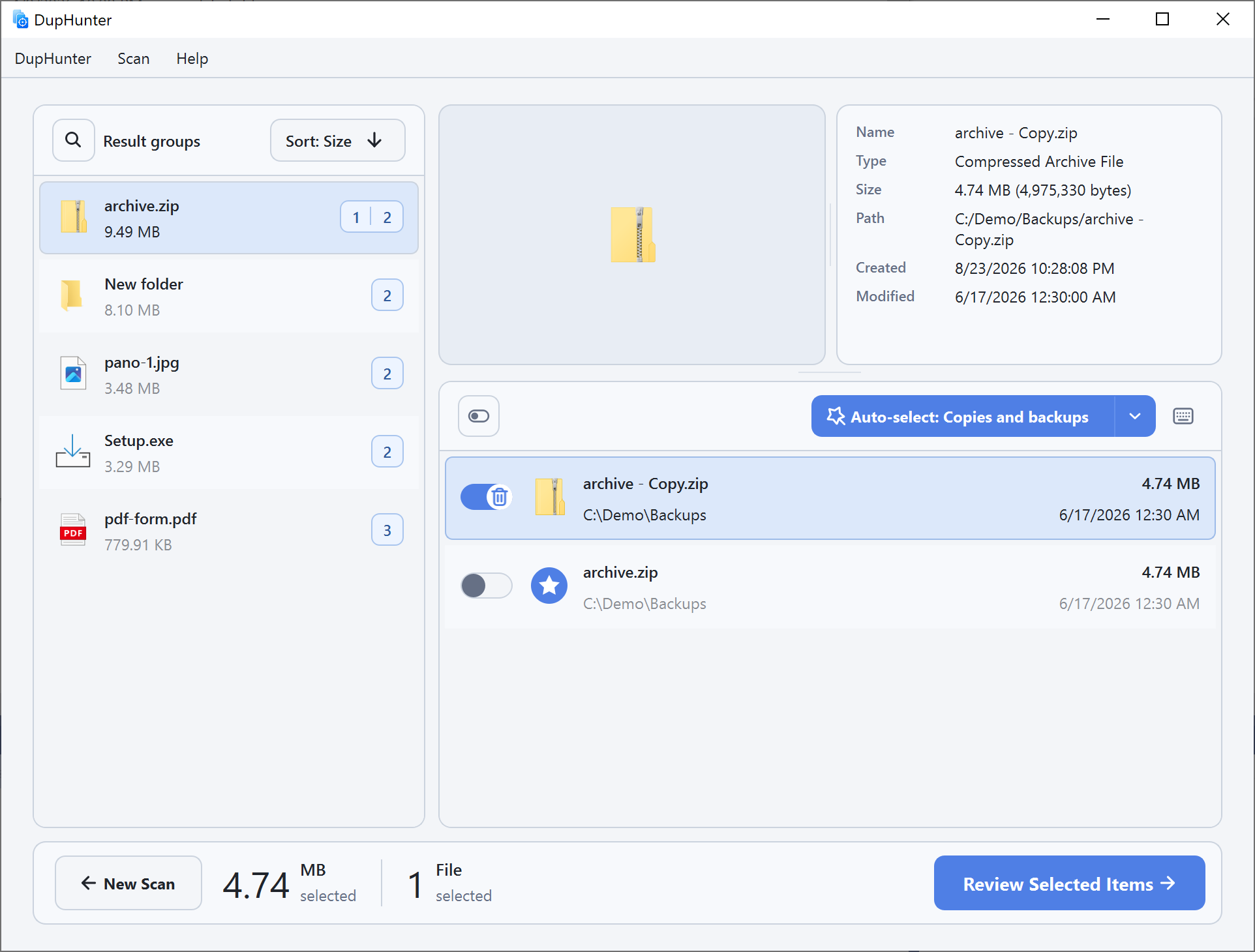
Open a result group and select the desired rule from the rule menu. DupHunter adds the matching items to your current manual selections.
Safety behavior
By default, applying a rule never selects every item in a group: at least one copy remains unselected. Existing manual choices are preserved, and you can change any selection before opening Review Selected Items.