Build a Skip List
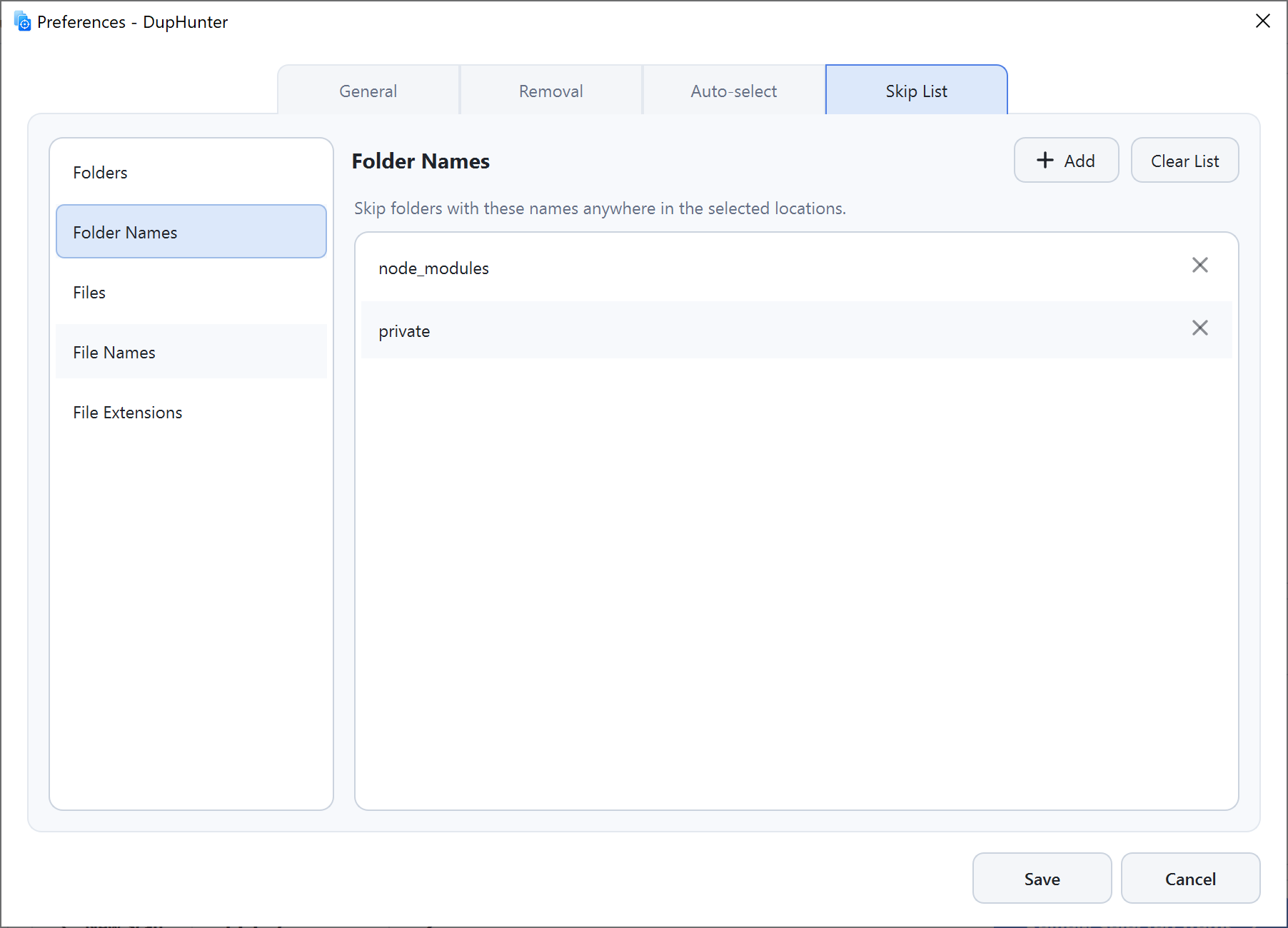
Open Preferences → Skip List. Choose a category, click Add…, and add the locations or patterns DupHunter should ignore:
- Folders excludes specific folders and everything inside them.
- Folder Names excludes that name wherever it occurs below a selected scan location.
- Files excludes specific files.
- File Names excludes that file name wherever it occurs.
- File Extensions excludes matching extensions such as
tmp,zip, ortar.gz.
Double-click an entry to edit it, use its remove control to delete one entry, or choose Clear to empty the current category.
Choose whether to scan hidden items
In Preferences → General, enable Include hidden files and folders only when those items are intentionally in scope. The option applies to all three search modes and may include application or system data.
Use the scan cache
DupHunter caches information from previous scans so unchanged files do not need the same work again. Open Preferences → General to see the current Scan Cache size or choose Clear Scan Cache. Cache size and maintenance are managed automatically.
Save unfinished results
In Preferences → General, set When quitting with unsaved results to Ask every time, Save automatically, or Don't save. Saved results reopen automatically the next time DupHunter starts.
Before acting on an older session, recheck the paths and previews. Files outside DupHunter may have changed since the original scan.